Sådan skifter du sprog
direct path to language link
https://translate.google.com/?sl=da&tl=en&op=translate
Guide: How to read cee.ysmen.dk in your preferred language in different browsers
To make our website more accessible for all members, you can easily translate the content of cee.ysmen.dk into English or your local language using your web browser's built-in tools.
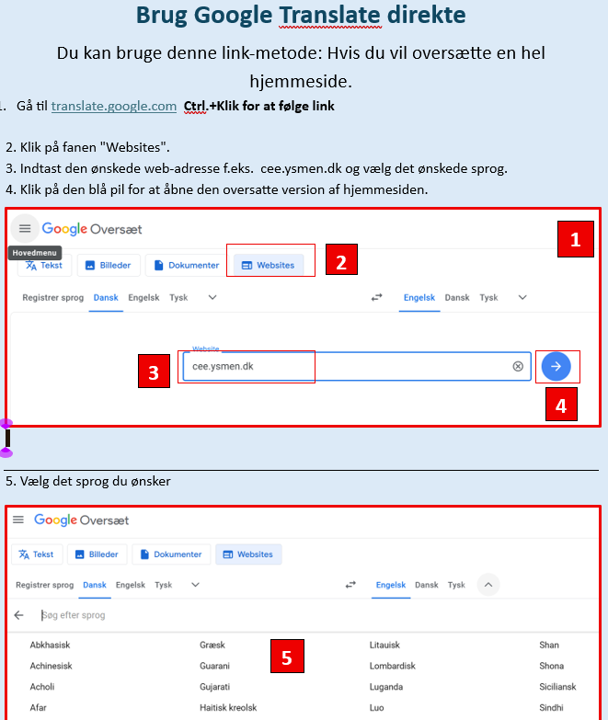
Alternative: Using Google Translate directly (see instructions above)
If your browser does not support the features above, you can use this link method:
- Go to translate.google.com.
- Click the "Websites" tab.
- Type in cee.ysmen.dk and select your desired language.
- Click the blue arrow to open the translated version of the site.
Here is a quick guide on how to do it in just a few clicks.
1. Google Chrome (Computer)
Google Chrome has translation built-in via Google Translate.
- Open cee.ysmen.dk.
- Right-click anywhere on the page (away from images or buttons).
- Select "Translate to English" (or your local language).
- An icon will appear in the address bar at the top right, where you can manage translation settings and set it to "Always translate."
2. Microsoft Edge (Computer)
- Open the website. Edge will often show a pop-up in the address bar asking if you want to translate the page.
- If the pop-up doesn't appear: Right-click on the page and select "Translate".
- You can change the target language by clicking the translation icon in the address bar.
3. Safari (iPhone, iPad, and Mac)
On Apple devices, the translation tool is located directly in the address bar.
- Look for the "AA" icon or the Translation icon (two speech bubbles) in the address bar where the URL is written.
- Tap/Click the icon and select "Translate to English" (or your preferred language).
- If it’s your first time, you may need to click "Enable Translation."
4. On Mobile Devices (Smartphone)
- Android (Chrome): Tap the three dots (⋮) in the top right corner and select "Translate...".
- iPhone (Chrome): Tap the three dots (...) in the bottom right corner, scroll down, and select "Translate".